How to Allocate More RAM to Minecraft (Step-by-Step)
Boost your performance with the ideal RAM setup: 8 GB for most, 10 GB for heavy modpacks.
Start NowWhy Allocate More RAM?
Allocating more RAM can stabilize FPS, reduce stutter, and improve world loading speeds — especially with mods or shaders installed. The ideal amount for most players is around 8 GB of RAM. For large modpacks with shaders, 10 GB is recommended.
Requirements
- ✅ 64-bit Java installed (Minecraft Java Edition)
- ✅ At least 8–16 GB of system RAM
- ✅ Close background apps before launching the game
- ✅ Don’t allocate over 60–70% of your total memory
How to Allocate More RAM (Launcher by Launcher)
Minecraft Launcher (Official)
1) Open the Minecraft Launcher and go to the Installations tab.
2) Click the three dots (…) next to the version you want to edit and select Edit.
3) Click "More Options" at the bottom.
4) Look for this setting in JVM Arguments: -Xmx2G.
→ Replace it with -Xmx8G for 8 GB, or -Xmx10G for 10 GB.
5) Click Save.
CurseForge Launcher
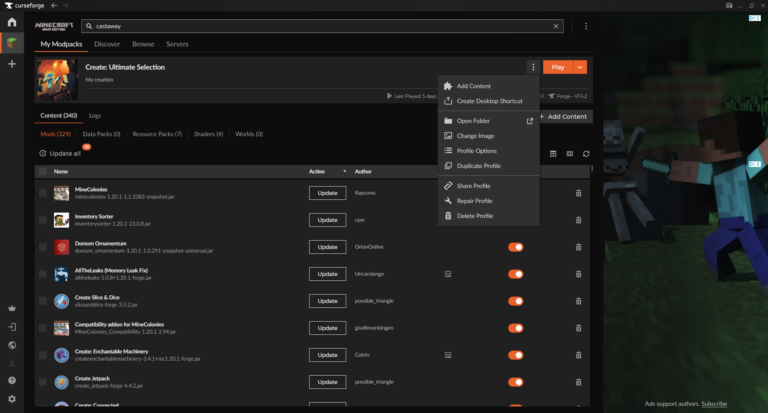
1) Open CurseForge and select your modpack.
2) Click the three dots → Profile Options.
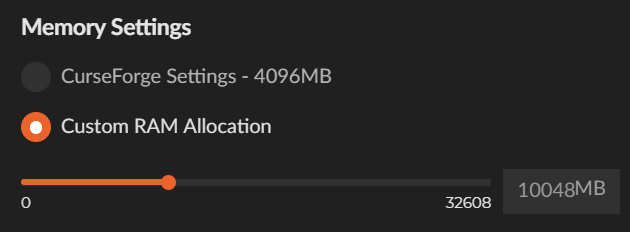
3) Enable Custom Profile Options.
4) RAM slider → set 8192 MB or 10240 MB.
Prism Launcher / MultiMC
1) Right-click your instance → Edit.
2) Go to Settings → Java.
3) Set Max RAM to 8192 MB or 10240 MB.
ATLauncher
Settings → Java/Minecraft → Maximum Memory.
Enter: 8192 MB or 10240 MB.
Minecraft Bedrock Edition
RAM cannot be changed manually. Reduce render distance to improve performance.

Recommended RAM Allocation
These are general guidelines to ensure smooth gameplay without overloading your system:
| Gameplay Type | Recommended RAM |
|---|---|
| Vanilla Minecraft (No Mods) | 2–4 GB |
| Light Modpacks (Up to 50 mods) | 6 GB |
| Large Modpacks (100+ mods) | 8 GB ✅ (ideal) |
| Heavy Modpacks + Shaders | 10 GB ✅ |
FAQs
Is 8 GB of RAM enough for modded Minecraft?
Yes! 8 GB is ideal for most modpacks. Only go to 10 GB if you're using shaders or massive 200+ mod collections.
Can I allocate too much RAM?
Yes. Allocating too much RAM may cause Java garbage collection issues, leading to stuttering or lag. Don’t exceed 10 GB unless necessary.
Do I need 64-bit Java?
Absolutely. 32-bit Java can only use about 1.5–2 GB of RAM and may crash when you try to allocate more.
How do I check if RAM allocation worked?
Launch Minecraft and press F3. Look for “Allocated Memory” in the debug screen.
Ready to Optimize Your Game?
Now you know how to allocate more RAM in Minecraft. Start with 8 GB for most modpacks, or go up to 10 GB for more demanding setups. Enjoy smoother worlds and better FPS!